To write Python, you need two things on your computer: Python itself, which runs your code, and an editor, where you type it. In six small steps, you'll install both, try Python out, then write a program that prints a small card about you, run it, and fix it when it breaks.
Step 1: Check whether you have Python
You talk to Python through a terminal: a window where you type a command and press Enter. Open one:
- Windows: right-click the Start button and choose Terminal (on Windows 10, Windows PowerShell).
- macOS: open Terminal, in Applications > Utilities.
- Linux: open your Terminal app.
Type the command for your computer and press Enter:
python --versionpython3 --versionIf Python is installed, it answers with its version:
Python 3.15.2
If yours says 3.15 or newer, skip to Step 3. If it shows an older version, or an error saying Python wasn't found, Step 2 is for you.
From here on, this site writes python. On macOS and Linux, type python3 wherever you see it.
Watch out
On Windows, typing python can open the Microsoft Store, or print Python was not found. On macOS, python3 can offer to install "command line developer tools", or answer with an older version. That's your computer offering to get Python, not the Python you want. You can cancel it and install Python in Step 2.
Step 2: Install Python 3.15
Follow the part for your computer, then come back for the check at the end.
Windows
Python's own way to install it on Windows is the Python install manager. It replaced the older installer, which stops with Python 3.16.
Install the Python install manager from the Microsoft Store (opens in a new tab) or from python.org/downloads (opens in a new tab). They're the same app. Then open a new terminal and ask it for Python 3.15:
py install 3.15The first time, it may ask a few setup questions, such as whether to add a folder to your PATH (the list of places your terminal looks for commands). Answering yes (y) is fine.
If py install answers that it can't open file, an old Python launcher from an earlier install is getting in the way. Uninstall Python Launcher in Settings > Apps, then try again.
macOS
Download the macOS installer from python.org/downloads (opens in a new tab): on a Mac, the big Download button offers the right one. Open it and follow its steps. It asks for your Mac's password, as any app installer does.
When it's done, a window opens with the Python 3.15 folder from your Applications. Double-click Install Certificates.command in it. It lets Python make secure connections to websites. A Terminal window shows its progress, and you can close it when it says update complete.
Linux
Python comes with most Linux systems, so Step 1 probably showed you a version already. If it didn't, install your distribution's python3 package.
Everything in this tutorial works the same on Python 3.12 or newer. The rest of this site is tested on 3.15, so if your version is older, see whether your distribution offers a newer Python as a package. Using Python on Unix platforms (opens in a new tab) has more.
Check that it worked
Close your terminal, open a new one, and ask for the version again:
python --versionPython 3.15.2
A later 3.15 release, such as 3.15.3, is fine too.
Watch out
A terminal that was already open before you installed Python may not see it yet, and still say Python wasn't found. Close it and open a new one.
Step 3: Talk to Python in the shell
Type python on its own and press Enter. You're now in the Python shell: Python shows its version and a >>> prompt, and runs each line as soon as you press Enter. Try a sum and a message:
>>> 7 * 24
168
>>> print("Hello, Python!")
Hello, Python!
7 * 24 is the number of hours in a week: * multiplies, and the shell shows the answer straight away. print shows whatever you put between its brackets. The quotes mark where the text starts and ends, so they don't appear.
Try it
How many minutes are there in a week? Multiply by 60 as well.
When you're done, leave the shell:
>>> exit()You're back at your terminal's own prompt. The shell is good for trying things one line at a time, but everything you typed is gone once you leave it. To keep a program and run it again, you save it in a file.
Step 4: Write your card in VS Code
You could write Python in any text editor, but a code editor helps: it colours your code, saves files with the right name, and has a terminal built in. This site uses VS Code, which is free and works the same on Windows, macOS and Linux.
- Download VS Code from code.visualstudio.com (opens in a new tab) and install it like any other app. The first time it starts, a "Welcome to VS Code" window offers to sign you in to GitHub Copilot, an AI assistant. You don't need it for this site: choose Continue without Signing In, then Get Started on the next page, where you can also pick a colour theme.
- Make a folder for your Python work called
python-steps, for example in your Documents folder. In VS Code, choose File > Open Folder… and open it. (You can make the folder from that window too.) - VS Code may open a folder it hasn't seen before in Restricted Mode, with a banner at the top. Restricted Mode protects you from code in folders you've downloaded. This folder is yours, so you can trust it, as Step 5 shows.
- Make a new file: in the Explorer on the left, right-click the empty space under the folder's name, choose New File…, type
about_me.pyand press Enter. The.pyat the end says it's a Python file.
Type this into the file, with your own name, city and reason instead of Asha's:
print("==============================")
print("Name: Asha")
print("City: Kochi")
print("Why:  to build my own apps")
print("==============================")
Each print is one line of the card, and Python runs them from top to bottom. Save the file with File > Save (Ctrl+S, or Cmd+S on a Mac). Until you do, a dot (●) on the file's tab shows it has unsaved changes.

VS Code may suggest the Python extension from Microsoft. You don't need it for this tutorial. It's worth installing later: it points out some mistakes as you type.
Step 5: Run it from the terminal
Open VS Code's terminal with View > Terminal, or Ctrl+(the backtick key, usually left of 1) on any computer. If the folder is in Restricted Mode, VS Code first asks whether you trust it. It's your own folder, so trust it. The terminal opens at the bottom of the window, already insidepython-steps`.
Run your program:
python about_me.py============================== Name: Asha City: Kochi Why: to build my own apps ==============================
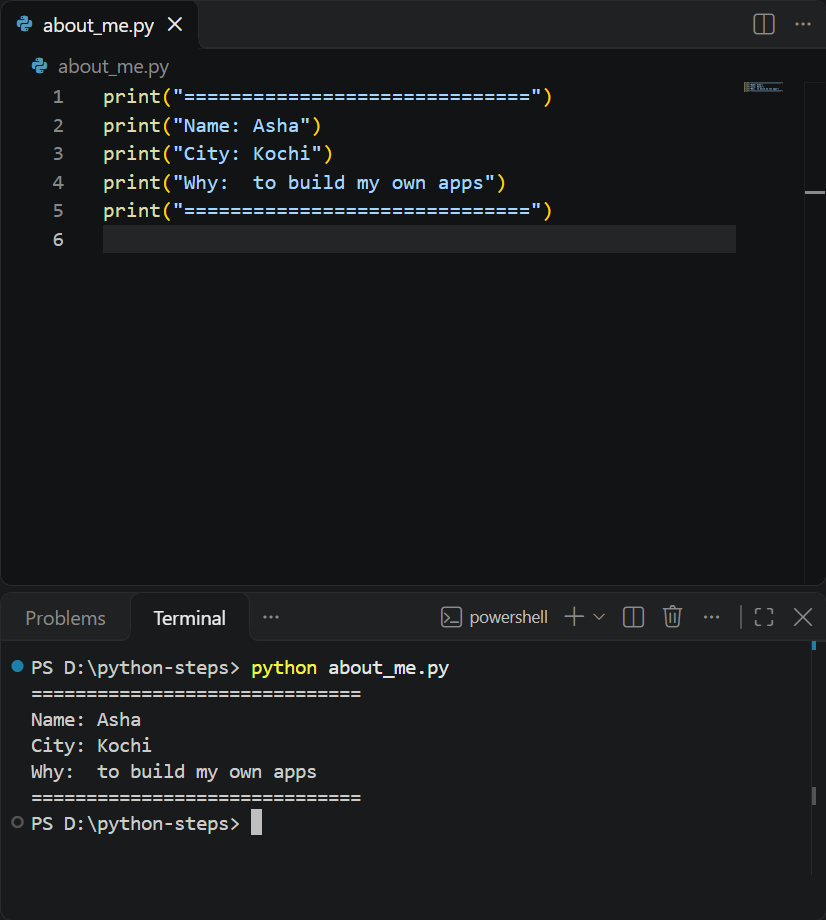
That's your first program: a file of Python that you can run as often as you like.
Watch out
Type python about_me.py at your terminal's prompt, not at Python's >>>. In the shell, Python reads it as Python code, and it isn't:
  File "<python-input-0>", line 1
    python about_me.py
           ^^^^^^^^
SyntaxError: invalid syntax
If you see >>>, leave the shell with exit() and run it again.
If Python says it can't open file, the terminal is in a different folder from your file, or the name is different. The message shows where Python looked:
C:\Users\Asha\...\python.exe: can't open file 'C:\\Users\\Asha\\about_me.py': [Errno 2] No such file or directory
Check the file's name in the Explorer, and open the terminal from VS Code while your folder is open, so it starts in the right place.
Step 6: Change it, break it, read the error
Change the city to yours, save, and run python about_me.py again. The card shows the new city. That's the everyday loop of programming: change, save, run, look.
Programs break too, so break this one on purpose to see what Python tells you. Delete the closing quote after Kochi, save, and run it:
print("==============================")
print("Name: Asha")
print("City: Kochi)
print("Why:  to build my own apps")
print("==============================")
File "about_me.py", line 3
print("City: Kochi)
^
SyntaxError: unterminated string literal (detected at line 3)Your terminal shows the full path to the file, and maybe colours; here it's only the name. Read an error from the bottom up:
- The last line says what's wrong. A string literal is text in quotes, and unterminated means it never ends: the closing quote is missing.
line 3and the^show where Python noticed it.
Nothing printed, not even the first line. Python reads the whole file before it runs any of it, and it couldn't make sense of line 3.
Put the quote back, then misspell print on line 2, save, and run it:
print("==============================")
prnt("Name: Asha")
print("City: Kochi")
print("Why:  to build my own apps")
print("==============================")
==============================
Traceback (most recent call last):
File "about_me.py", line 2, in <module>
prnt("Name: Asha")
^^^^
NameError: name 'prnt' is not defined. Did you mean: 'print'?This time the first line printed. The file made sense, so Python started running it, top to bottom, and stopped at line 2, because it doesn't know any prnt. It even suggests what you meant. Fix it, save, and run once more to get your card back.
Watch out
If a fix seems to change nothing, look for the dot (●) on the file's tab. Python runs the file as it was last saved, so an unsaved fix runs the old, broken version. File > Auto Save saves for you as you type.
Recap
- Install Python with the Python install manager on Windows, the python.org installer on macOS, or your distribution's packages on Linux.
python --version(python3on macOS and Linux) shows which one you have. - The shell (
>>>) runs one line at a time and forgets it all when you leave withexit(). - A program is a
.pyfile. Save it, then run it from a terminal in its folder:python about_me.py. - Read an error from the bottom: the last line says what went wrong, and the line number says where.
- A
SyntaxErrorstops the file before anything runs. Other errors stop it at the line where they happen.